Quick start
Workload item
To access the workload you must first create a PriceIQ item.
- Log in to Microsoft Fabric and navigate to Workloads.
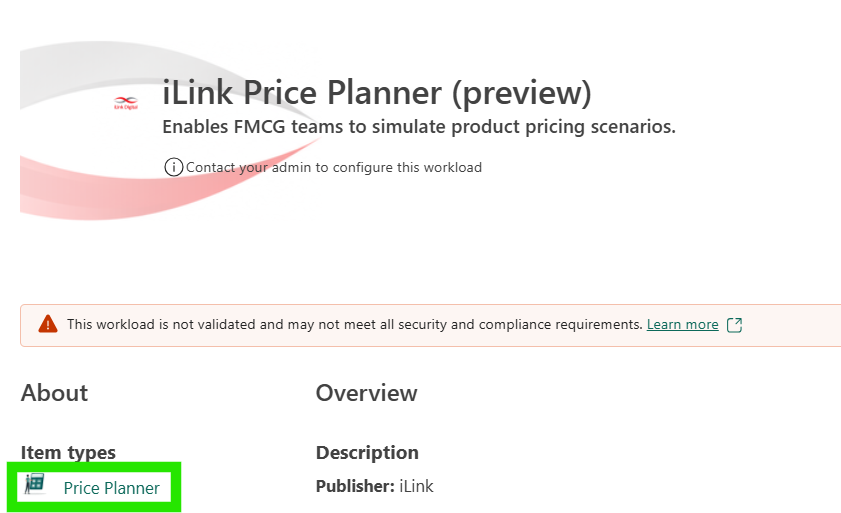
- Go to PriceIQ by iLink and select the item type PriceIQ.
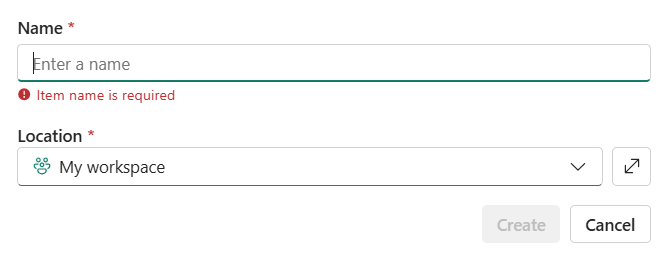
- Enter a name for the PriceIQ item, select the workspace where you want to create it, and select Create.
Project setup
- Add a new Project by selecting Project setup.
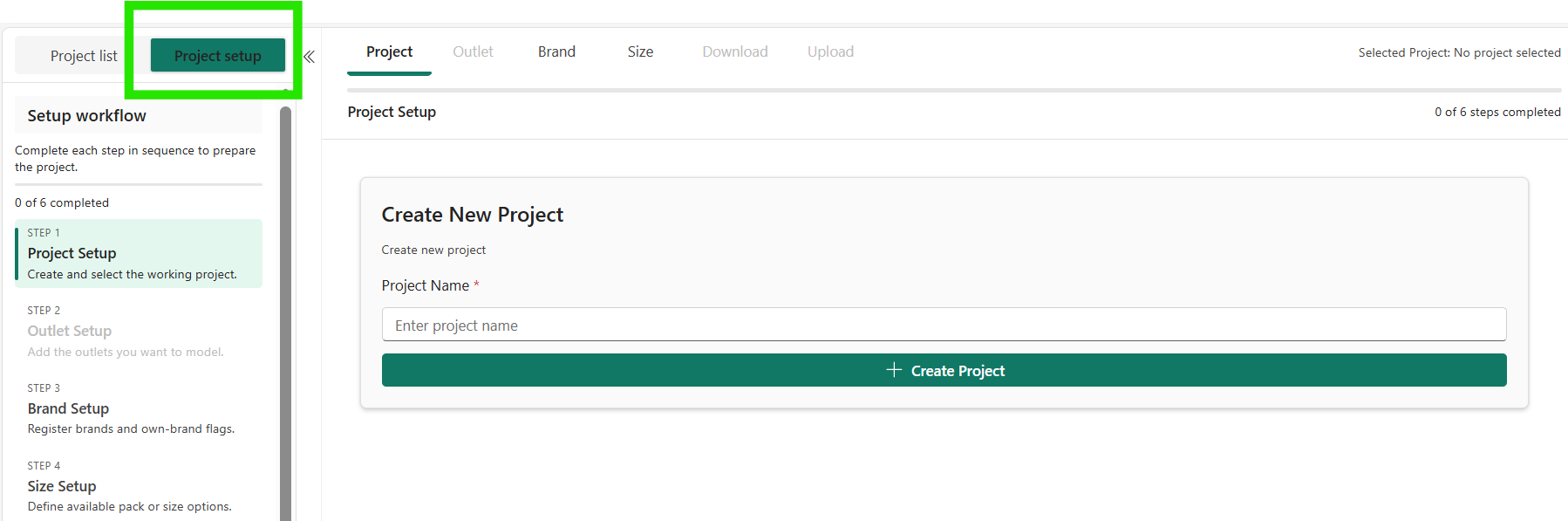
- Add the Project name, Outlet, Brand (own versus competitor) and Size details.
- Users can add multiple sizes for a brand, separated by commas.
- Download the template.
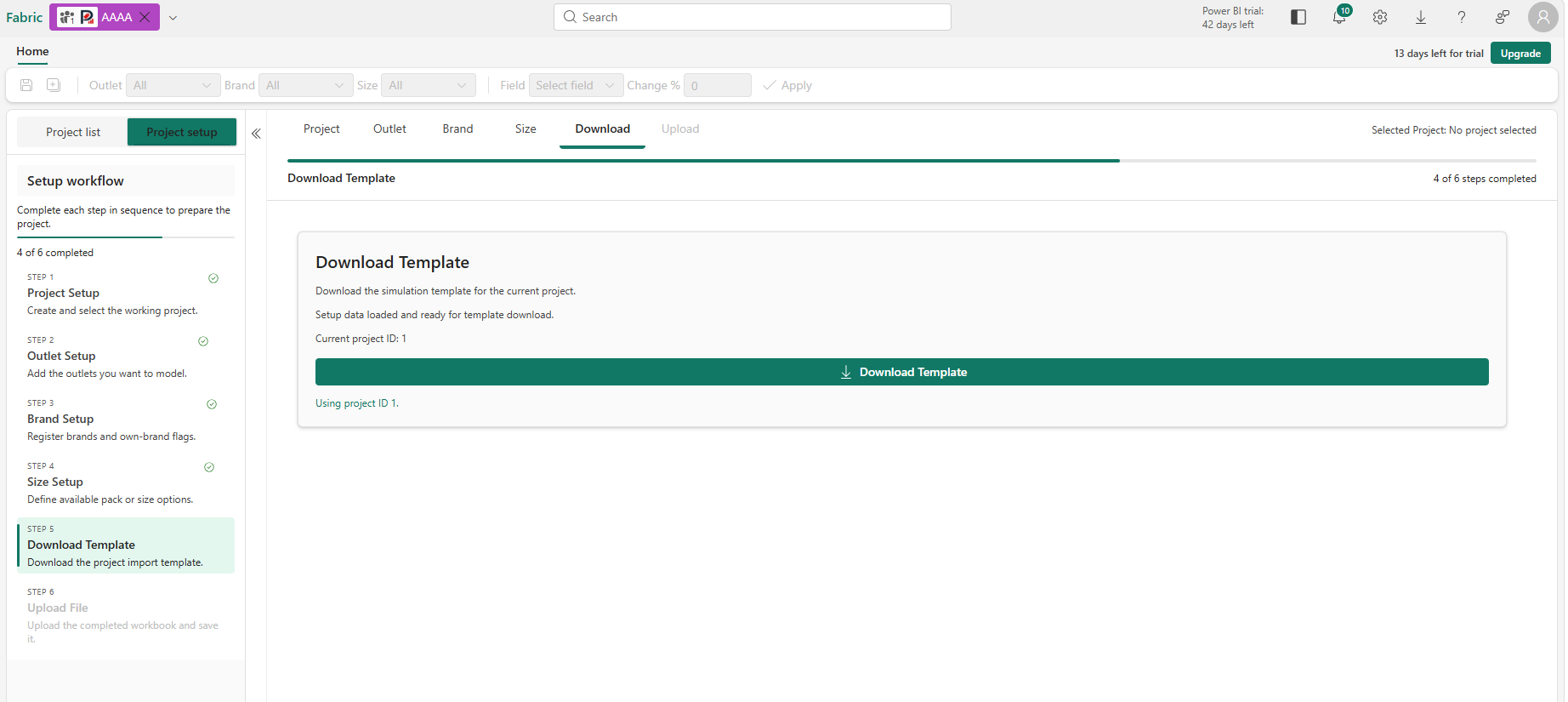
- Once the template is downloaded, open it on your local machine and fill in the required details.
- Upload the template.
Scenarios – Data
- Go to the Project list tab in the left navigation pane.
- Every successfully created project gets a default Zero Change scenario. It serves as the baseline for all other scenarios you create.
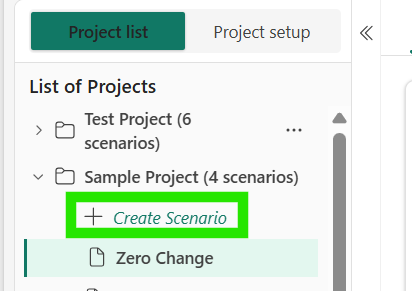
- Create a new scenario by selecting Create Scenario under a project.
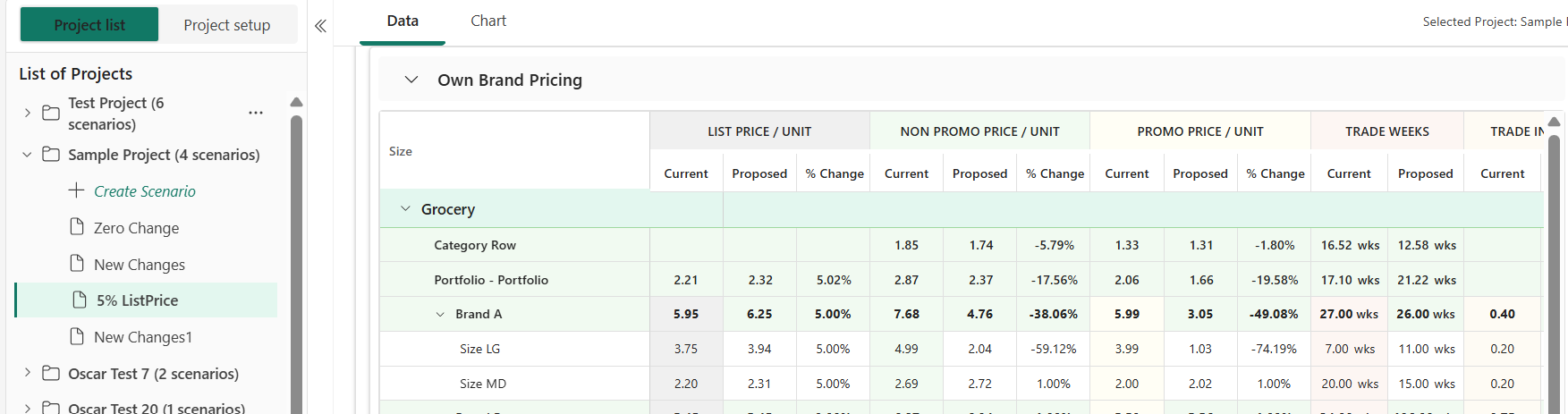
- Update the Proposed or % Change values in the Own Brand Pricing and Competitor Pricing tables.
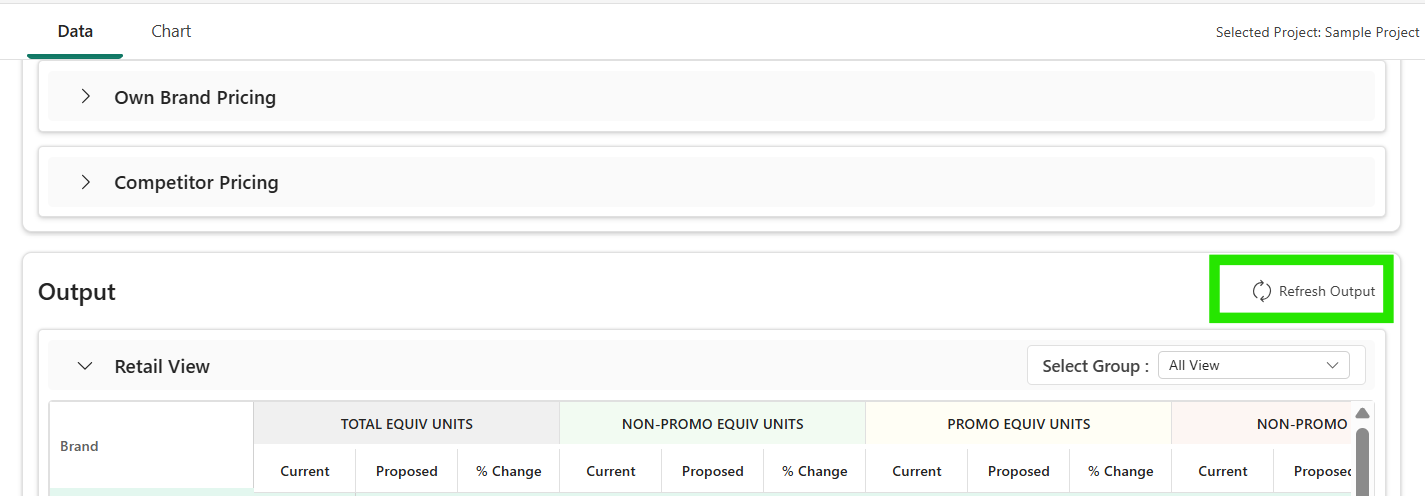
- Select Refresh Output to run the scenario.
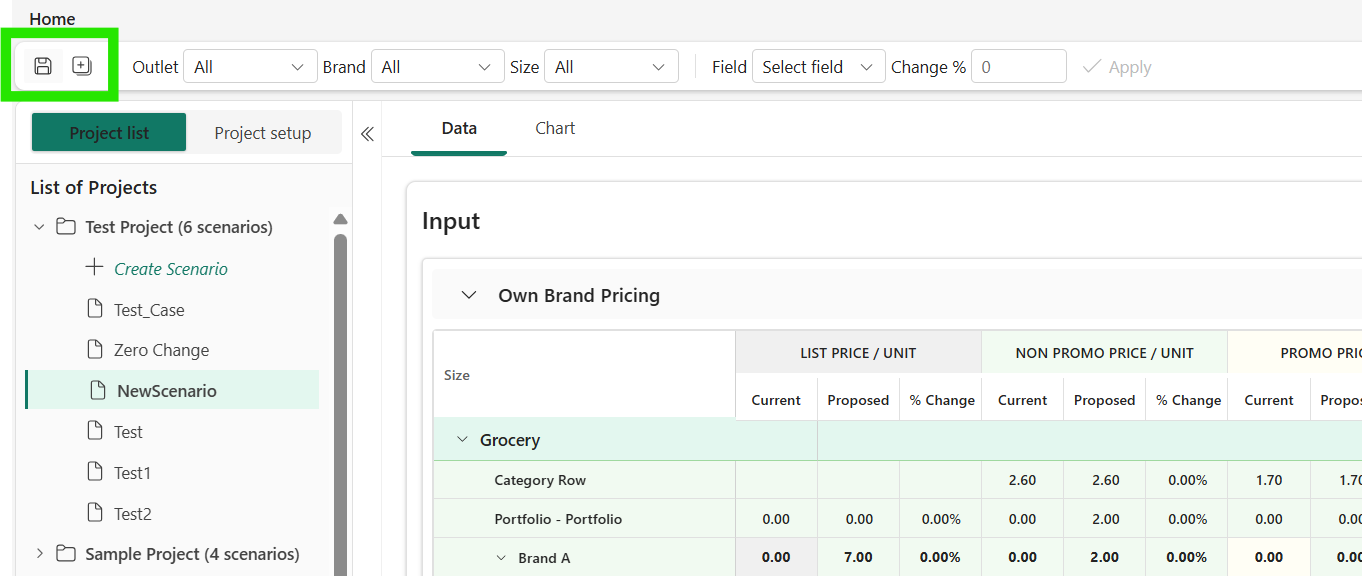
- If you are satisfied with the changes and want to save the simulation, select Save to update the existing scenario. Alternatively, select Save As to save the simulation as a new scenario.
Scenarios – Compare scenarios
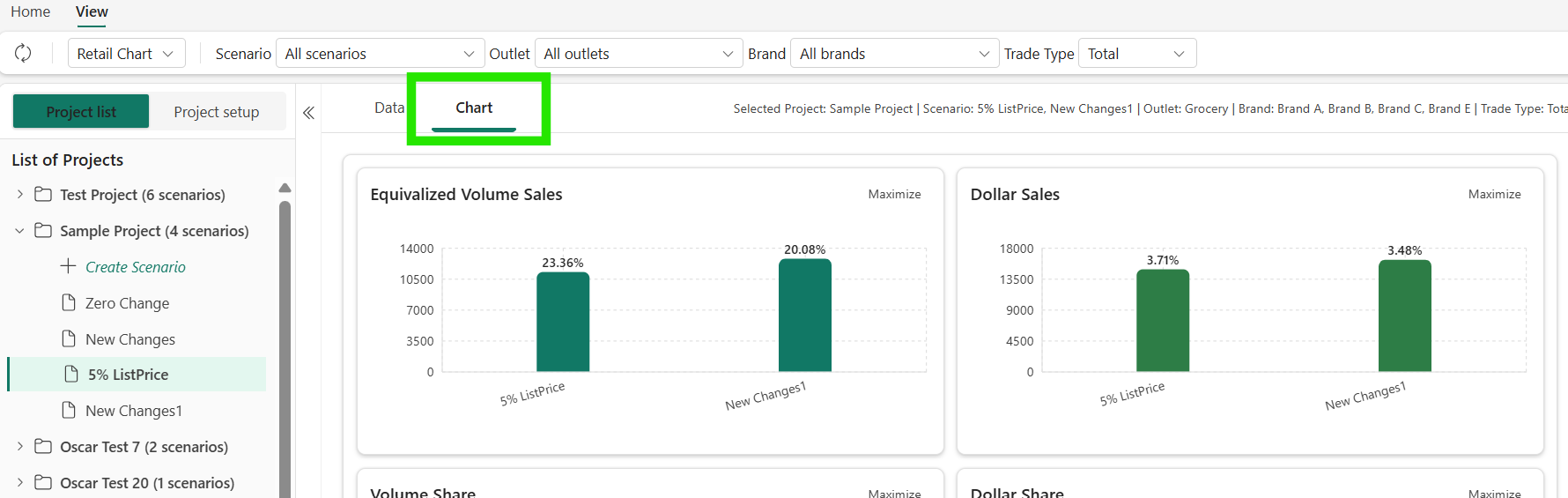
Select the Chart tab to compare scenarios.